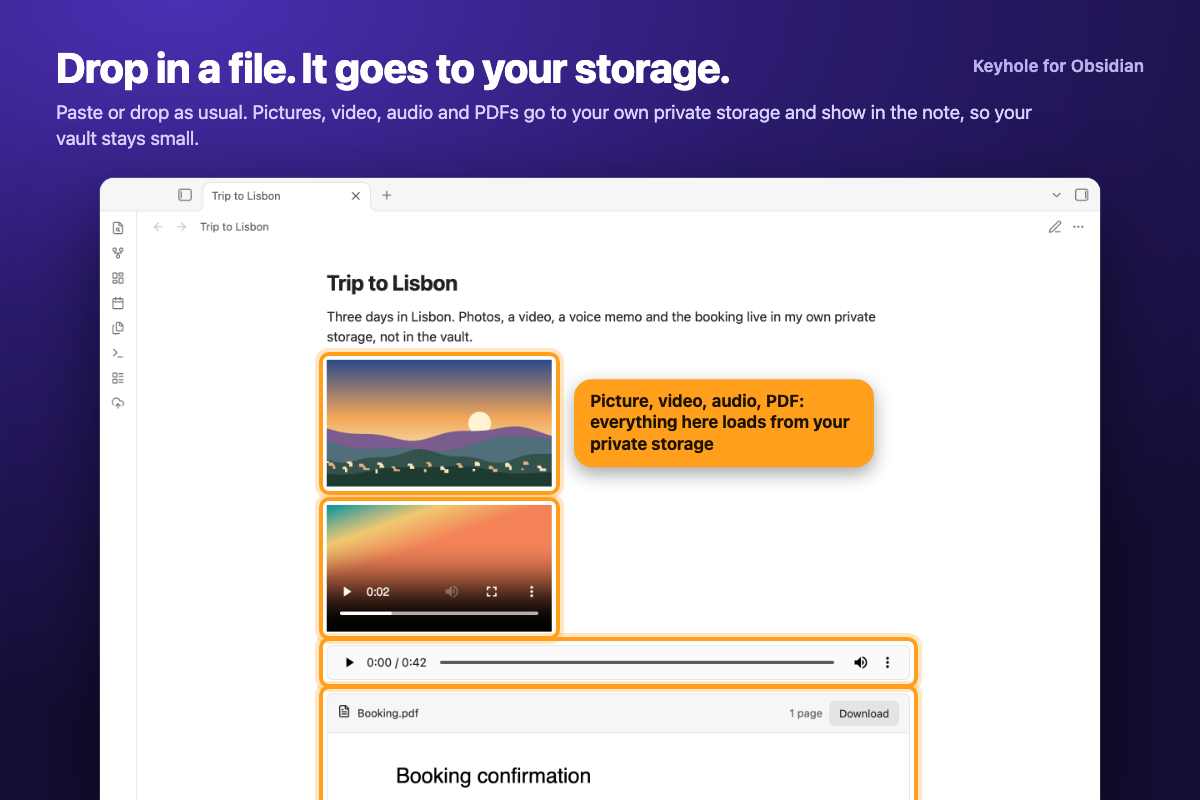
Attachments make a vault heavy.
- Photos, scans, voice memos and videos pile up in the vault, and every device has to sync all of them.
- Image upload plugins write public links: anyone who has the link can open the file.
- Private files belong on storage you choose, not on someone else’s cloud.
Keyhole keeps the files on storage you control: an S3-compatible bucket, WebDAV, or the small Keyhole server. The note holds only a private keyhole:// link, never a token or a signed URL, and the file still shows in the note like any attachment.
Nothing is publicly readable. Your keys stay in the device’s keychain, so they are never synced or committed to Git. The vault, and Obsidian Sync, stay small.
Private attachments that still feel like attachments.
Pictures, PDFs, audio, video and any other file. In Reading view, Live Preview, hover previews, Canvas and the image viewer.
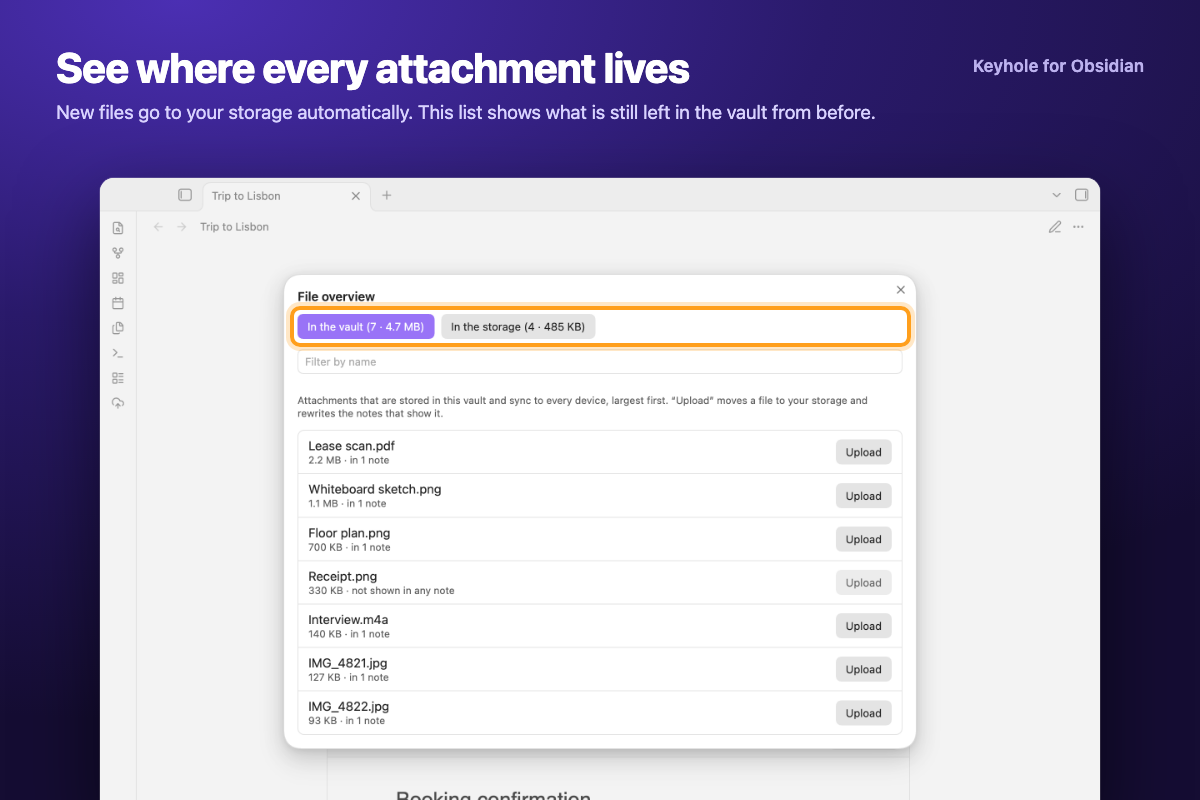
See where every attachment lives
New files go to your storage automatically. The file overview shows what is still left in the vault from before, with sizes. Each file can be uploaded on its own, or all of them at once with Move all.
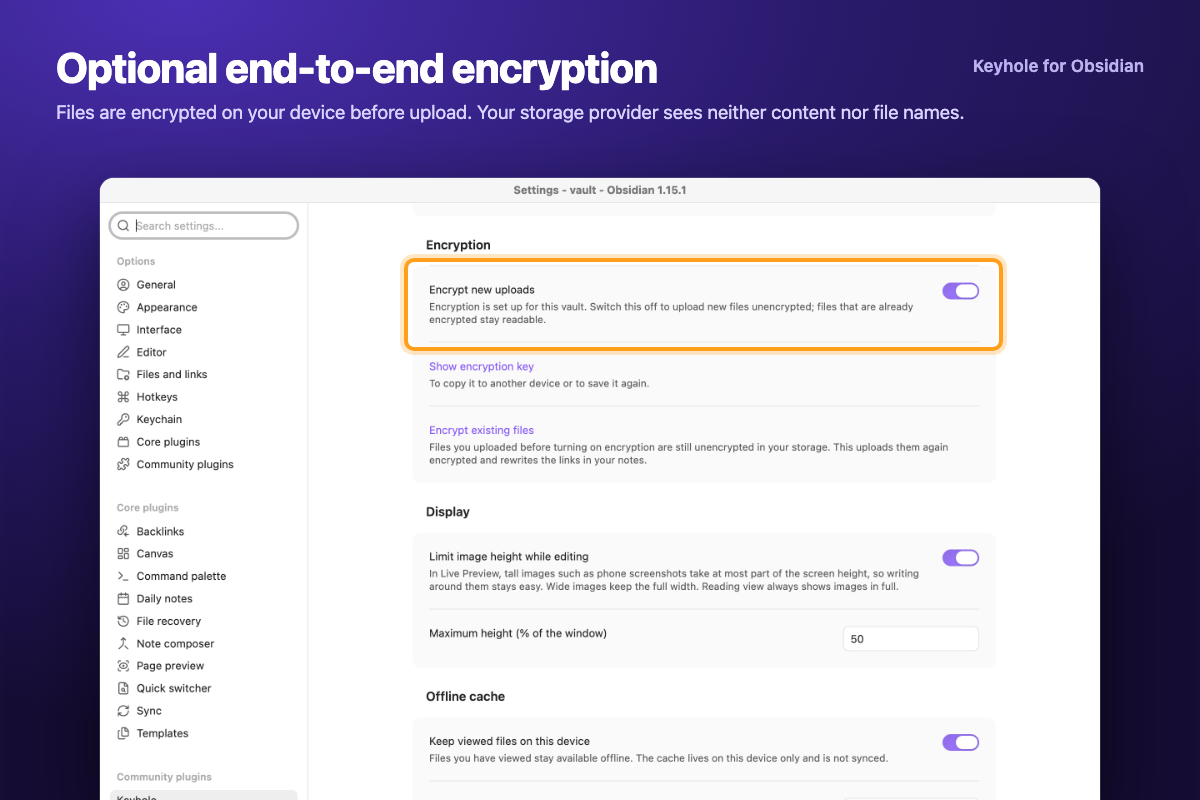
Optional end-to-end encryption
Files are encrypted on your device (AES-256-GCM) before upload. Your storage provider sees neither content nor file names. There is no recovery: if you lose the key, the encrypted files are gone.
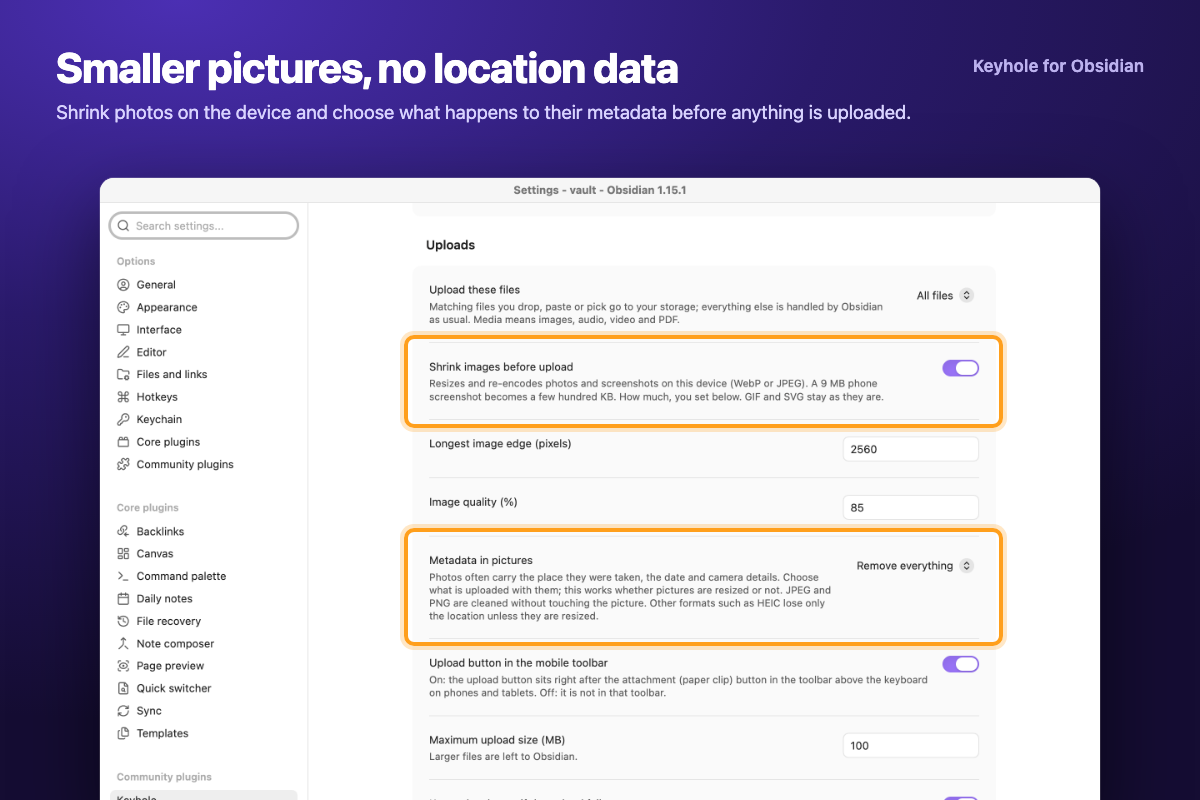
Smaller pictures, no location data
Photos are shrunk on the device, never by a service, and you choose what happens to their metadata before anything is uploaded: keep everything, remove the location, or remove everything (the default).
Bring any file back. No lock-in.
Every file can return to the vault as a normal attachment, one by one or all at once. Your storage keeps its copies.
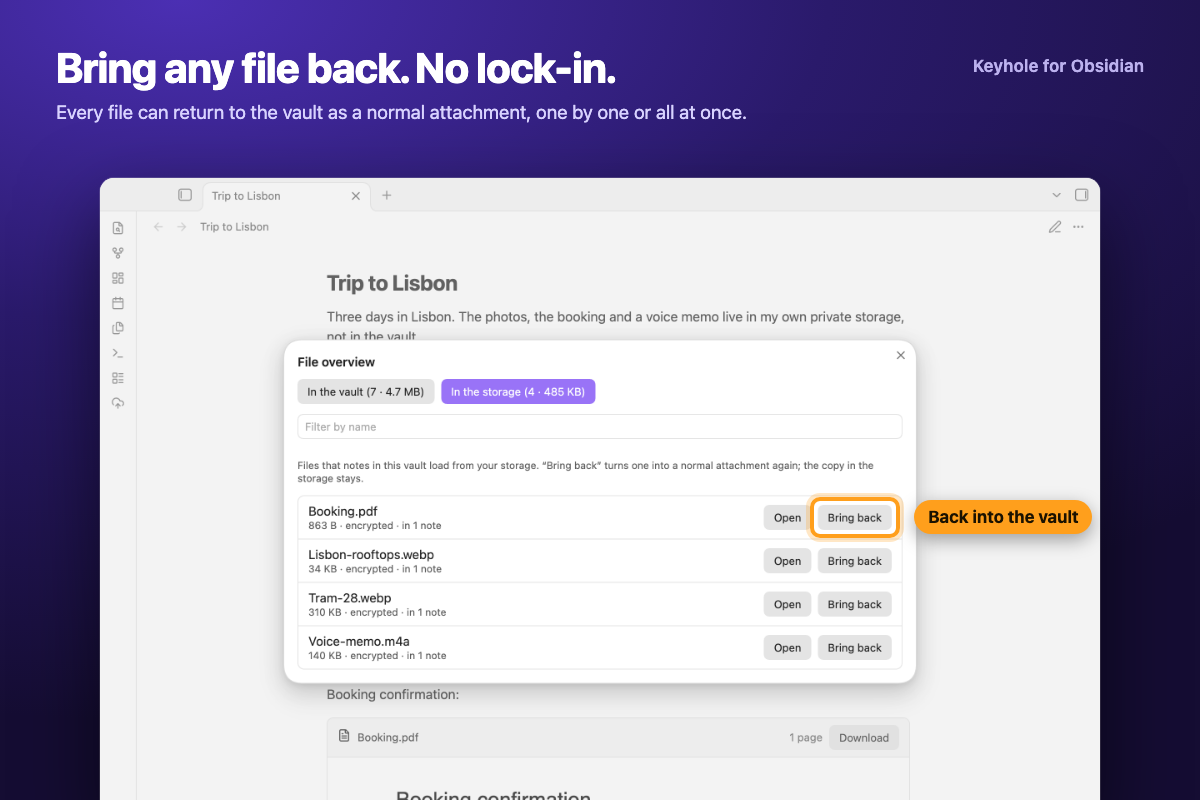
Your attachments on every device, without syncing gigabytes.
Keyhole works on desktop and mobile. It has been tested on macOS and iPhone; see the limits for what still needs testing.
-
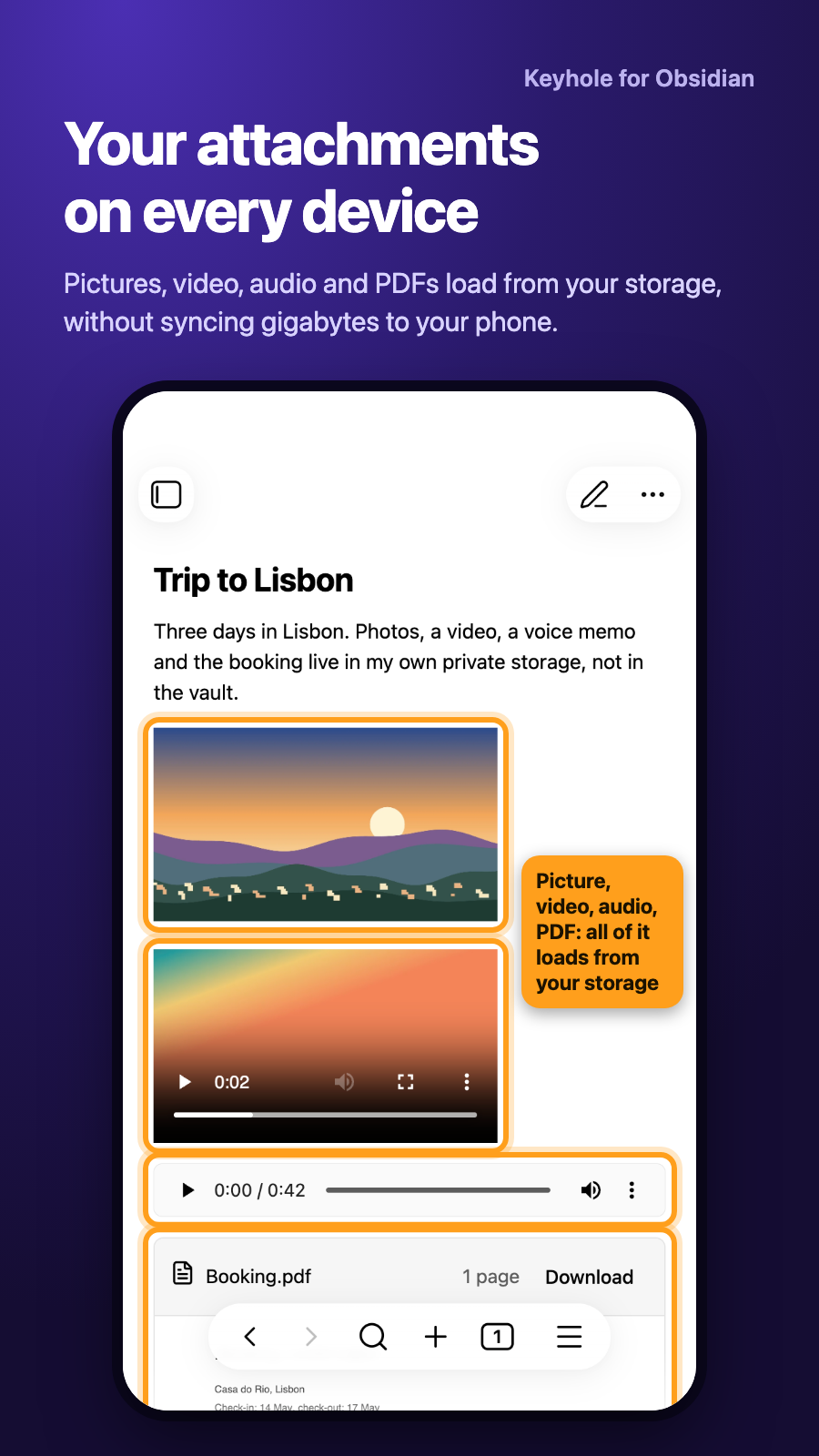
Your attachments on every device
Pictures, video, audio and PDFs load from your storage, without syncing gigabytes to your phone.
-
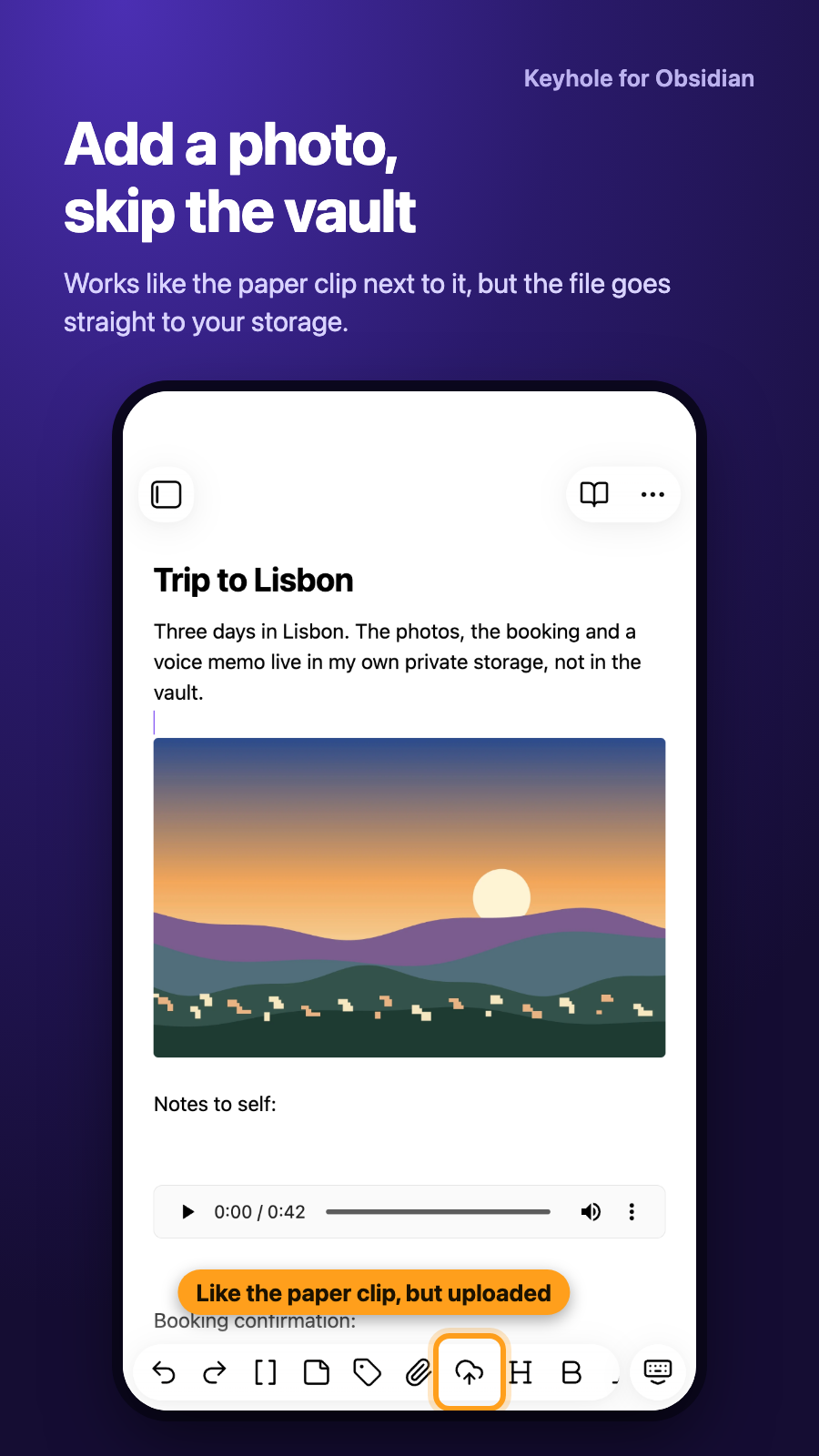
Add a photo, skip the vault
Works like the paper clip next to it, but the file goes straight to your storage.
-
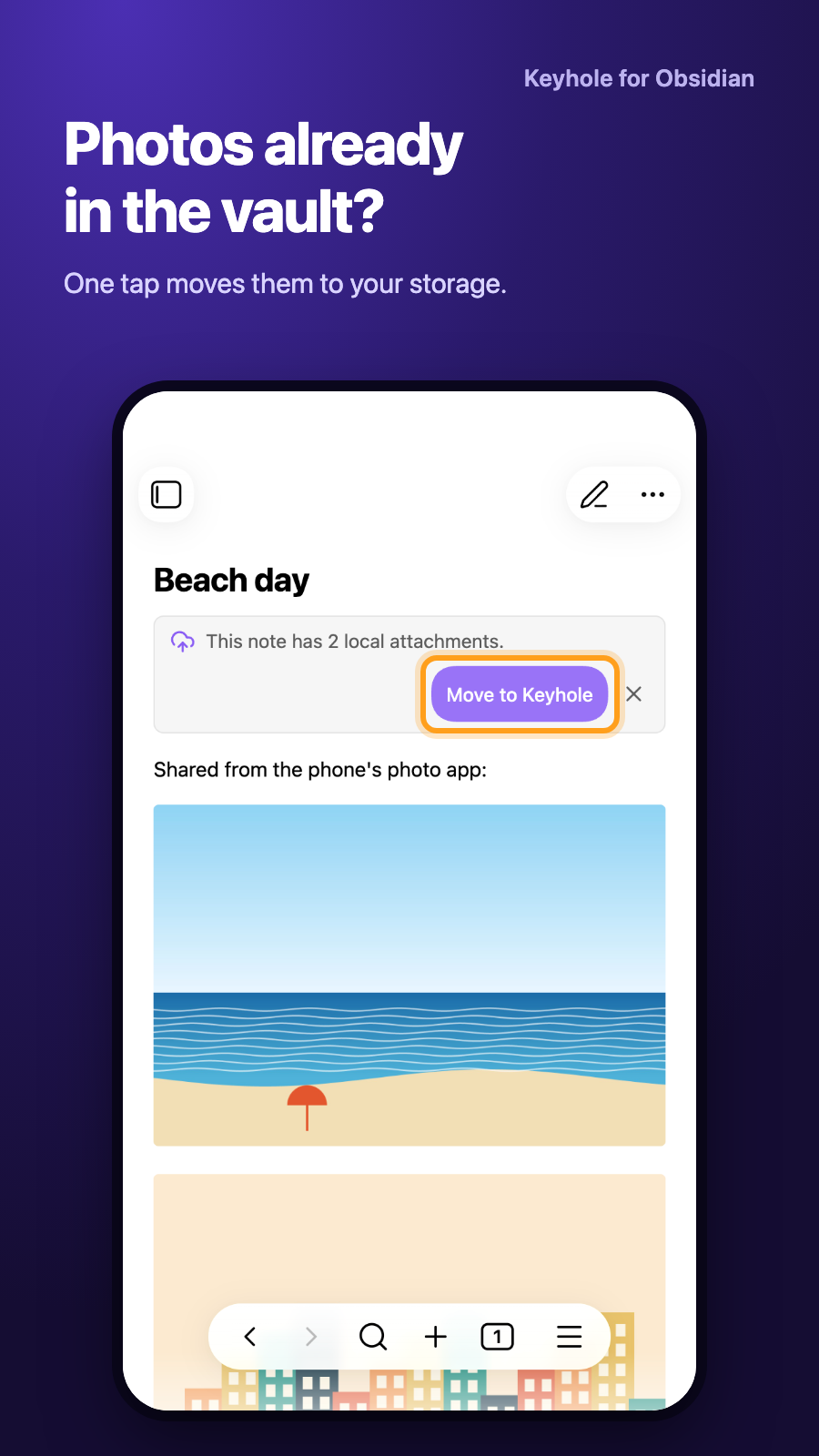
Photos already in the vault?
One tap moves them to your storage.
-
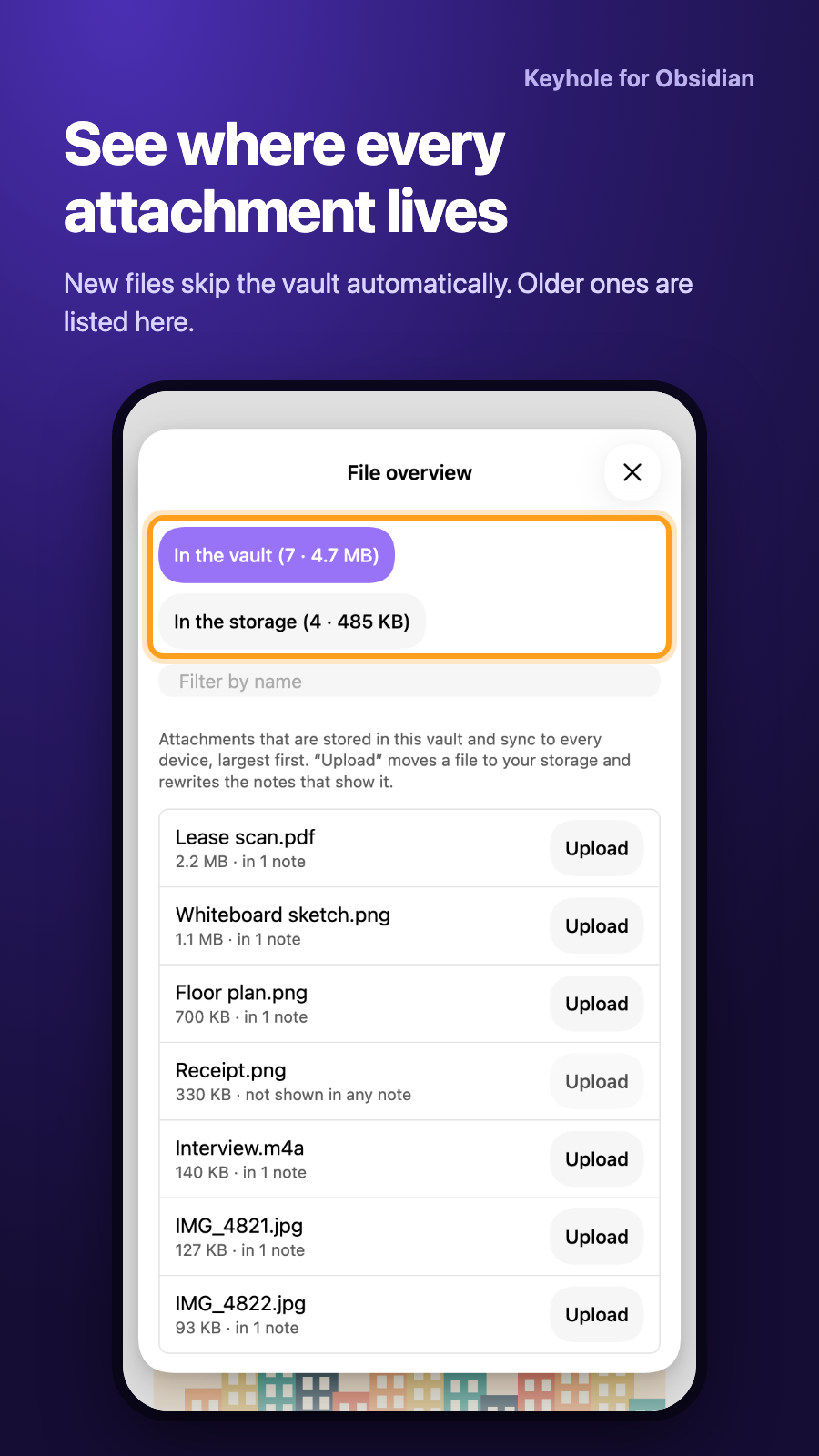
See where every attachment lives
New files skip the vault automatically. Older ones are listed here.
-
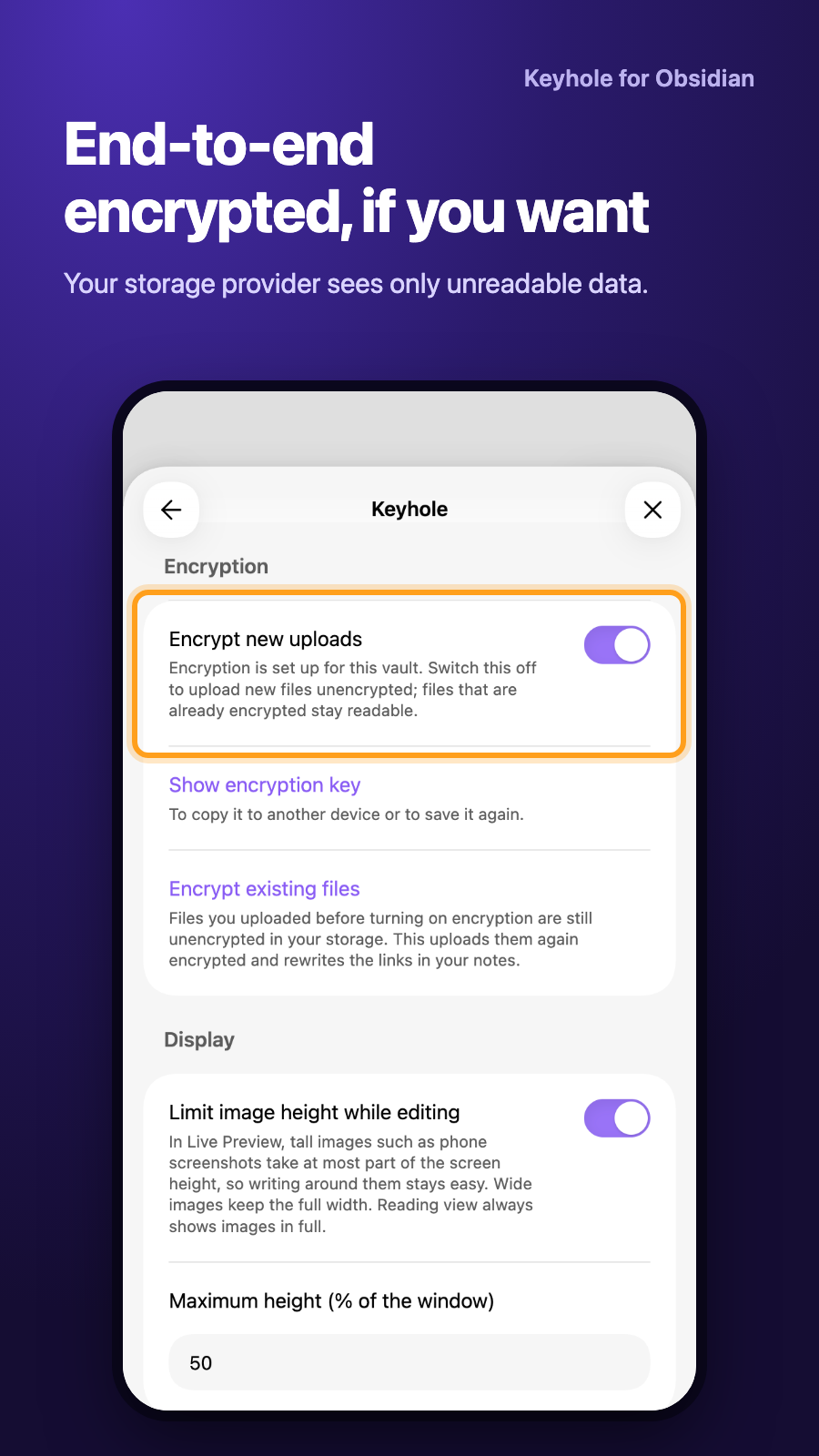
End-to-end encrypted, if you want
Your storage provider sees only unreadable data.
Swipe or scroll sideways for more screenshots.
Everything at a glance
- Private by designNothing is publicly readable. Notes contain only
keyhole://links, never tokens or signed URLs. - Secrets stay on the deviceKeys, tokens and passwords live in Obsidian’s keychain, not in your vault, so they are never synced or committed to Git.
- All kinds of filesPictures, PDFs rendered in the note, audio and video (streamed from S3 or the Keyhole server), and any other file as a download card. One switch per kind decides what is uploaded.
- Works where attachments workReading view, Live Preview, hover previews, Canvas and the image viewer, on desktop and mobile.
- Optional end-to-end encryptionFiles are encrypted on your device before upload, so the storage provider sees neither content nor file names.
- Smaller pictures, no location dataPhotos are shrunk on the device, and you choose what happens to their metadata.
- OfflineFiles you have viewed are kept on the device, up to a size limit you choose.
- No lock-inEvery file can come back into the vault as a normal attachment, one by one or all at once.
- Never lose a fileIf an upload fails (you are offline, say), the file is saved as a normal local attachment instead.
Obsidian attachments on your own S3, WebDAV or server
Keyhole speaks open standards, not one provider’s API. Moving to another provider means changing settings, not notes.
| Storage | Examples |
|---|---|
| S3-compatible | AWS S3, Cloudflare R2, Backblaze B2, Wasabi, Garage, SeaweedFS, MinIO |
| Keyhole server | keyhole-server: a small server of its own, no dependencies, Docker image |
| WebDAV | Nextcloud, Synology, rclone serve webdav, Caddy, nginx |
Keep your bucket private. Keyhole never needs public access, and it needs no CORS configuration. You need an account with an S3-compatible provider (often paid beyond a free tier), or your own server.
Ready in three steps
-
Install Keyhole
In Obsidian, open Settings → Community plugins → Browse, search for Keyhole, install and enable it. Or start from its page in the directory.
-
Follow the set-up guide
It opens the first time and goes through it step by step: connect your storage and test it, choose what is uploaded, decide about encryption, place the upload button on phones, and move the attachments you already have.
-
Drop in a file
Drop or paste files into a note as usual. On a second device, a short version of the guide asks only for what never syncs: the secret and, if you use encryption, the key.
Private Obsidian attachments, and exactly what that means
Keyhole connects only to the storage you configure, to upload and download your files. It sends no telemetry and contacts no other service.
- SecretsThe secret access key, token or password is stored in Obsidian’s keychain on each device. Each one is tied to the server it was saved for: if the storage address changes to another host, Keyhole asks for the secret again instead of sending it there.
- SettingsStored in the plugin’s
data.jsoninside your vault and synced with it if you sync plugin settings. They contain the storage address, bucket, access key ID and WebDAV user name, but no secrets. - What your storage provider seesThe files themselves and their names; the file name is part of the object key. Unless you turn on end-to-end encryption, Keyhole does not encrypt files, so use a provider or server you trust. With encryption, the provider still sees file sizes, upload times and how many files you have.
- Streaming linksTo stream audio and video, the media player gets a signed link that expires after a few hours. These links exist only while the note is open and are never written to your notes.
- The offline cacheLives in the app’s local storage on each device, outside your vault. Encrypted files stay encrypted there; others are not encrypted by Keyhole. It stays when you remove the plugin, so clear it first.
- Reading your notesClean-up, restoring and the file overview go through your notes to find
keyhole://links. Note contents are never sent anywhere. - Other pluginsObsidian does not separate plugins from each other: other plugins you install can read the keychain and the files shown in your notes. Only install plugins you trust.
- Verifiable releasesRelease files carry GitHub artifact attestations, so you can check that
main.jsandstyles.csswere built from the repository.
The complete list, including the clipboard and picture metadata, is in the README’s privacy section. To report a vulnerability, see the security policy.
What Keyhole cannot do (yet)
Keyhole is in beta. It is tested on macOS and iPhone. The newer features (end-to-end encryption, large uploads, the file overview and the set-up guide) have not been tried on a phone yet, and Android has not been tested at all.
- Without Keyhole installed, the embeds show as broken images. The links contain the file name, so nothing is lost, and Bring all Keyhole files back restores normal attachments at any time.
- Obsidian Publish cannot show Keyhole files.
- Plain WebDAV downloads media completely before playback. Use S3 or the Keyhole server for large videos.
- Large files: on S3-compatible storage, files over 16 MB are uploaded in parts of 8 MB, so they do not have to fit into memory. The Keyhole server and WebDAV take a file in one request; on phones, very large files can run into memory limits there. The default maximum is 100 MB.
- Encrypted audio and video cannot be streamed; they are downloaded completely before they play. If you lose the encryption key, the encrypted files are gone.
Support Keyhole
Keyhole is free and open source. If it keeps your vault small and your files private, you can support its development.